
From Chaos to Clarity: How Excel Templates Simplify Your Daily Workflows and Boost Productivity
Most people waste hours each week copying data between files, fixing formatting errors, and rebuilding the same reports from scratch.
These repetitive tasks slow down your work and create opportunities for mistakes. When your team relies on messy spreadsheets with no clear structure, simple jobs become time-consuming problems.

Excel templates eliminate this chaos by giving you pre-built, reusable structures that handle common tasks automatically. Instead of starting from zero each time, you open a template that already contains the right formulas, formatting, and layouts. This means less manual work and more consistent results across your entire team.
Whether you manage projects, track budgets, or analyse sales data, templates turn Excel from a blank canvas into a ready-made solution. You'll learn how to choose templates that fit your needs, customise them for your specific workflows, and use advanced features that transform raw data into clear insights. The right template can cut hours from your weekly routine whilst improving accuracy and reducing stress.
The Power of Excel Templates in Transforming Workflows
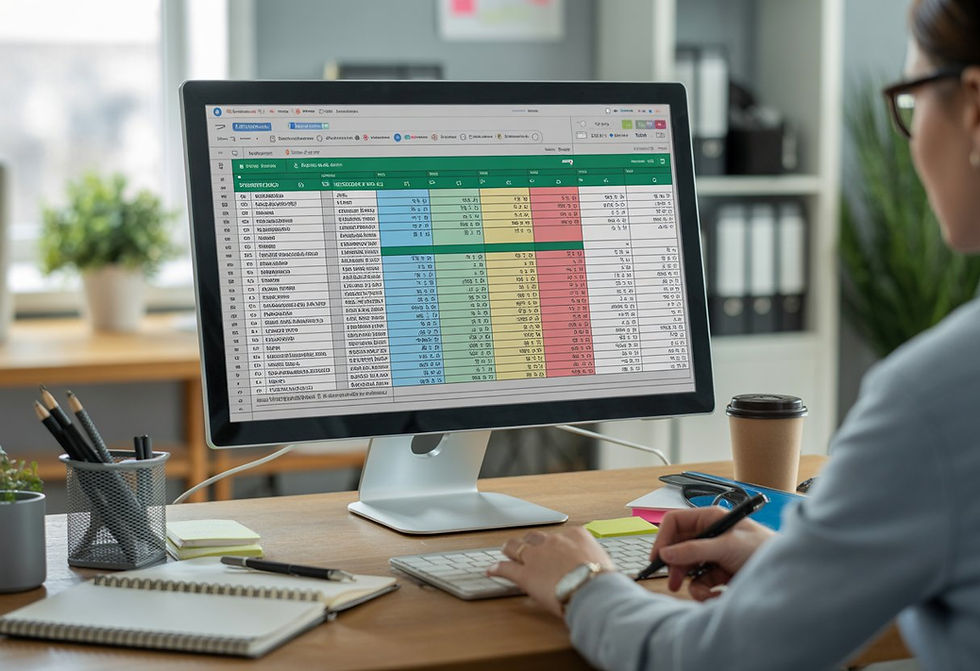
Excel templates provide pre-built structures that eliminate repetitive setup work and establish standard processes across your team. They turn time-consuming tasks into quick, reliable operations whilst maintaining accuracy in your data.
From Chaos to Clarity: Core Benefits of Excel Templates
Excel templates replace scattered, inconsistent spreadsheets with organised systems. When you use a template, you get pre-formatted cells, built-in formulas, and clear layouts that guide your work from the start.
Key benefits include:
Immediate structure – You open a template and start entering data straight away
Built-in calculations – Formulas are already set up and tested
Professional appearance – Formatting and design are complete
Reduced setup time – No need to build spreadsheets from scratch
Templates work across different business needs. Budget templates automatically calculate totals and variances. Project plan templates track tasks and deadlines. Invoice templates generate professional billing documents in minutes.
You can customise templates to match your specific requirements whilst keeping the core structure intact. This means you get both standardisation and flexibility in one tool.
How Templates Streamline Workflows and Save Time
Microsoft Excel templates eliminate the most time-consuming parts of spreadsheet work. Instead of spending 30 minutes creating a new expense report, you open a template and complete it in five minutes.
Your team saves hours each week by reusing proven structures. When everyone uses the same template, you skip the back-and-forth about formatting and layout. Data entry becomes faster because you always know where information belongs.
Time savings appear in several ways:
Quick file creation without manual setup
Faster data entry through consistent layouts
Reduced training time for new team members
Less time spent fixing formatting issues
Templates also speed up collaboration. When colleagues share files based on the same template, you understand the structure immediately and can review or edit without confusion.
Ensuring Consistency and Reducing Errors
Templates maintain accuracy by locking in correct formulas and validation rules. When you use a template, you cannot accidentally delete important formulas or miscalculate totals.
Error reduction happens through:
Pre-tested formulas that calculate correctly every time
Data validation that prevents invalid entries
Standardised formats that eliminate confusion
Protected cells that safeguard critical calculations
Consistency across your organisation becomes automatic. Every department uses the same budget format, making it simple to compare results. Monthly reports follow identical structures, which helps you spot trends and anomalies quickly.
You also reduce compliance risks. When financial templates include required fields and calculations, you meet regulatory standards without extra checks. This built-in accuracy protects your business and saves time during audits.
Essential Features of Effective Excel Templates

The best Excel templates share three core features that transform raw data into actionable information. Built-in formulas eliminate calculation errors, automated charts turn numbers into visual stories, and conditional formatting highlights what matters most.
Pre-Built Formulas for Reliable Calculations
Excel formulas are the engine of any useful template. When formulas are already built into your template, you eliminate the risk of typing errors or incorrect calculations. You simply enter your data and the template does the maths instantly.
Common formulas like SUM, AVERAGE, and VLOOKUP come pre-configured in quality templates. This means you don't need to remember complex syntax or waste time building calculations from scratch. The formulas automatically adjust as you add new rows or columns of data.
Templates with formula protection are especially valuable. The important calculations stay locked whilst you can still input your data freely. This prevents accidentally deleting or changing critical formulas that power your entire spreadsheet.
Your template should also include error-checking formulas that flag missing data or unusual values. These built-in safeguards catch problems before they affect your reports or decisions.
Automated Data Visualisation with Charts and Graphs
Charts and graphs transform columns of numbers into patterns you can understand at a glance. Good templates include pre-formatted charts that update automatically as you enter new data. You don't need to create visualisations from scratch each time.
Bar charts work well for comparing values across categories. Line graphs show trends over time. Pie charts display how parts make up a whole. Your template should use the chart type that best suits your specific data.
The formatting matters too. Professional templates use consistent colours, clear labels, and appropriate scales. These design choices make your charts easy to read and interpret quickly.
Dynamic charts linked to your data tables mean your visualisations stay current without manual updates. When you change a number in your spreadsheet, the corresponding chart adjusts immediately.
Conditional Formatting for Instant Insights
Conditional formatting applies colours, icons, or other visual cues based on cell values. This feature draws your attention to important information without requiring you to scan every number manually.
You can set rules that highlight cells above or below certain thresholds. Red formatting might flag overdue invoices whilst green shows completed tasks. Data bars provide a visual representation of values within cells themselves.
Templates with pre-configured conditional formatting save you from setting up these rules repeatedly. The formatting applies automatically to new data you add, maintaining consistency across your entire worksheet.
Traffic light icons, colour scales, and custom rules help you spot trends, outliers, and problems quickly. This visual layer turns a plain spreadsheet into a dashboard that communicates key insights at first glance.
Simplifying Data Analysis and Reporting

Excel templates remove the guesswork from data analysis by providing structured methods to clean your data, summarise information through pivot tables, and present findings in visual dashboards. These features turn messy spreadsheets into reliable sources of business intelligence.
Data Cleaning for Accurate Outcomes
Clean data forms the foundation of any useful analysis. Raw data often contains duplicates, blank cells, inconsistent formatting, and errors that skew your results.
Excel templates include built-in data validation rules that prevent incorrect entries from the start. You can set up drop-down lists, number ranges, and text length limits that keep your data consistent. This stops problems before they happen rather than fixing them later.
The Remove Duplicates feature identifies and deletes repeated rows in seconds. Text-to-Columns splits combined information into separate fields, making it easier to sort and filter. Find and Replace helps you standardise inconsistent entries like "UK" and "United Kingdom" throughout your dataset.
Templates can include pre-built formulas that flag common issues. TRIM removes extra spaces, UPPER and LOWER fix capitalisation, and IFERROR catches calculation mistakes. These functions work automatically once you paste your data into the template.
Leveraging Pivot Tables and Slicers
Pivot tables transform thousands of rows into meaningful summaries without requiring complex formulas. They group, count, and calculate totals based on categories you choose.
A well-designed template includes pre-configured pivot tables that update when you add new data. You simply refresh the table, and it recalculates everything instantly. This saves you from rebuilding the same analysis each week or month.
Slicers add visual filtering buttons to your pivot tables. Instead of clicking through dropdown menus, you click clearly labelled buttons to filter by date, region, product, or any other field. Multiple slicers work together, so you can view specific combinations like "January sales in London" with two clicks.
Templates with linked slicers control multiple pivot tables at once. Change one filter, and all related tables update simultaneously. This keeps your entire report in sync and reduces the chance of analysing mismatched data.
Creating and Customising Excel Dashboards
Excel dashboards gather your most important metrics onto a single screen. Charts, tables, and key performance indicators sit side by side, giving you a complete view of your data.
Templates provide dashboard layouts that balance visual appeal with functionality. They use a mix of bar charts, line graphs, and tables positioned to guide your eye to the most critical information first. Conditional formatting highlights values above or below targets using colour codes.
You can customise these dashboards by changing chart types, adjusting colour schemes, and adding your company logo. The underlying data connections remain intact, so your customisations don't break the automated updates. When new data arrives, your personalised dashboard refreshes with current figures.
Dynamic elements like sparklines show trends in a single cell, whilst gauge charts display progress towards goals. These visual tools communicate complex information faster than rows of numbers ever could.
Popular Excel Templates for Everyday Business Needs
Excel templates help you manage money and track projects without building spreadsheets from scratch. These ready-made tools handle common business tasks like tracking expenses and organizing team workflows.
Budgets and Financial Planning Solutions
Budget templates let you track income and expenses in one place. You can monitor monthly spending, compare it against your goals, and spot where money goes each week. Most templates include built-in formulas that calculate totals automatically.
Financial planning templates help you create forecasts and manage cash flow. You can project revenue for the next quarter or track whether you're meeting your savings targets. These tools often include sections for different expense categories like payroll, supplies, and utilities.
Balance sheet templates calculate your business equity by subtracting what you owe from what you own. You simply enter your assets and liabilities, and the template does the maths. Financial reports become easier to generate when you use templates with pre-formatted layouts that show profit margins, expense ratios, and other key metrics.
Project and Workflow Management Templates
Project tracking templates help you monitor tasks, deadlines, and team responsibilities. You can list every task in your project, assign it to specific people, and mark completion dates. Many templates include progress bars that fill automatically as you update task statuses.
Timeline templates show when different project phases should start and end. You can see which tasks depend on others and identify potential delays before they cause problems. These visual tools make it easier to explain project schedules to your team or clients.
Inventory management templates track stock levels and reorder points. You can record what items you have, where they're stored, and when you need to order more supplies.
Visualising and Interpreting Your Data
Excel transforms raw numbers into visual stories through charts and graphs that reveal patterns you might otherwise miss. The right visual tool helps you spot trends, compare values, and share findings with others who need to make decisions quickly.
Using Pivot Charts and Visual Tools for Insights
Pivot charts work alongside pivot tables to create dynamic visuals that update automatically when your data changes. You can drag and drop fields to instantly compare different categories or time periods without rebuilding your chart from scratch.
The Quick Analysis tool appears when you select a data range, offering chart suggestions based on your data type. This saves time because Excel recommends the most suitable options for your specific dataset.
For deeper analysis, the Analysis ToolPak provides statistical tools that help you understand distributions and relationships in your data. You can access it through Excel's add-ins menu if you need regression analysis or moving averages.
Pivot charts excel at handling large datasets where you need to filter and slice information on the fly. You can click on chart elements to drill down into specific segments, making it easier to answer questions during presentations.
Applying Bar, Pie, and Line Charts Effectively
Bar charts work best when comparing values across different categories, such as sales by region or performance by department. Horizontal bars make it easier to read long category names.
Pie charts show proportions within a whole but only work well with five or fewer segments. Too many slices make the chart confusing and hard to interpret.
Line charts track changes over time, making them ideal for showing trends in revenue, website traffic, or inventory levels. Multiple lines let you compare different products or periods on the same chart.
Choose your chart type based on your question. Use bars for comparisons, pies for parts of a whole, and lines for time-based trends. Keep colours simple and add data labels when exact values matter.
Advanced Excel Template Techniques and Customisation
Mastering advanced formulas like VLOOKUP and leveraging Excel's Analysis ToolPak transforms basic templates into powerful analytical tools that handle complex data operations automatically.
Integrating VLOOKUP and Advanced Excel Formulas
VLOOKUP searches for a value in the first column of a table and returns a corresponding value from another column in the same row. When you build this formula into your templates, you eliminate repetitive manual lookups and reduce errors.
The basic syntax is =VLOOKUP(lookup_value, table_array, col_index_num, [range_lookup]). For instance, if you manage inventory across multiple sheets, VLOOKUP can automatically pull product prices, stock levels, or supplier details based on a product code you enter.
You can combine VLOOKUP with other functions for more sophisticated results. Using IFERROR wraps your VLOOKUP formula to display custom messages when no match exists: =IFERROR(VLOOKUP(A2,Products!A:D,3,FALSE),"Not Found").
For templates requiring multiple criteria, consider using INDEX and MATCH together.
This combination offers more flexibility than VLOOKUP alone. INDEX returns a value from a specific position, whilst MATCH finds that position based on your criteria.
Harnessing the Full Potential of the Analysis ToolPak
The Analysis ToolPak is an Excel add-in that provides advanced statistical and engineering analysis tools without requiring complex formulas. You activate it through File > Options > Add-ins, then select Analysis ToolPak from the Excel Add-ins list.
Once enabled, you access these tools through the Data tab under Data Analysis. The ToolPak includes regression analysis, histograms, moving averages, and correlation matrices. These functions are particularly valuable for financial forecasting templates or sales trend analysis.
For example, the Moving Average tool smooths out fluctuations in your data to identify trends more clearly. You simply specify your input range and interval, and Excel generates the calculations automatically.
The Regression feature analyses relationships between variables, which helps you build predictive models within your templates. This proves especially useful for budget forecasting or demand planning templates where historical data informs future projections.
Frequently Asked Questions
Excel templates require specific structural elements to function properly, and understanding how to build, implement, and maintain them helps teams work more efficiently. These questions address the practical concerns you'll face when adding templates to your workflows.
What are the essential components of a well-structured Excel template for workflow management?
A well-structured Excel template needs clearly labelled columns and rows that match your specific data requirements. Each field should have a designated purpose, and the header row must describe what information belongs in each column.
Data validation rules prevent incorrect entries at the source. You can set up dropdown menus for categories, limit number ranges, or require specific date formats. These controls stop errors before they enter your system.
Formulas should be pre-built and protected so users can't accidentally delete or modify them. Lock the cells containing calculations whilst leaving input cells editable. This separation keeps your template's logic intact whilst allowing team members to enter their data freely.
Conditional formatting provides visual cues that make patterns obvious. Colour-coding can highlight overdue dates, flag values outside normal ranges, or show progress towards targets.
How can custom Excel templates reduce the time spent on daily administrative tasks?
Custom templates eliminate the setup time you'd otherwise spend creating new spreadsheets from scratch. You open the template, enter your current data, and the structure already exists with all formulas and formatting in place.
Repetitive tasks become faster when the template guides you through the required steps. A project tracking template might include predefined task categories and status options. You select from existing choices rather than typing free-form text that varies each time.
Templates standardise routine reports so you don't need to decide how to present information. The layout, calculations, and charts are already configured. You simply update the numbers and the report generates itself.
In what ways do Excel templates enhance data accuracy and consistency across different business processes?
Templates enforce uniform data entry across your entire team. When everyone uses the same field names, date formats, and category labels, you can combine information from multiple people without spending time on cleanup.
Built-in validation rules catch errors immediately. If someone tries to enter text in a number field or uses an invalid date format, Excel stops them before the mistake becomes part of your dataset.
Standardised formulas eliminate calculation errors that occur when team members create their own spreadsheets. Everyone's totals, percentages, and other calculations follow the same logic and produce comparable results.
Could you explain the process of integrating Excel templates into an existing data management system?
Start by identifying which recurring tasks in your current workflow would benefit from standardisation. Look for spreadsheets that team members recreate regularly or processes where different people produce similar outputs in different formats.
Create a template based on your best current example. Take a spreadsheet that works well and remove the specific data whilst keeping the structure, formulas, and formatting. Save this file as an Excel template file type.
Store the template in a shared location where all team members can access it. Your network drive, SharePoint, or cloud storage service should have a dedicated folder for templates. Communicate the location clearly to your team.
Import existing data into the new template format gradually. You don't need to convert everything at once. Begin with new projects or the next reporting period whilst allowing older files to remain in their current format.
What best practices should be followed when creating and implementing Excel templates for team usage?
Include clear instructions directly in the template. Add comments to cells that explain what data belongs there or create a separate instructions sheet within the workbook. Users shouldn't need to guess what information you expect.
Test your template with sample data before rolling it out. Enter various scenarios including edge cases to verify that formulas work correctly and the layout accommodates different data volumes.
Protect worksheet elements that users shouldn't modify. Lock cells containing formulas, labels, and formatting whilst leaving data entry cells unprotected. This prevents accidental changes to the template's structure.
Version control matters when you need to update templates. Include a version number and date in the file name. When you release an improved version, communicate what changed and whether existing files need conversion.
Are there any tips for effectively training staff on the use of new Excel templates within their work routines?
Demonstrate the template with real examples from your actual work. Show team members how to complete a typical task using familiar data rather than abstract demonstrations.
This connection to their daily activities makes the training relevant.
Provide written guides that staff can reference later. Screenshots showing each step work better than text descriptions alone. Store these guides in the same location as the templates for easy access.
Allow time for questions and hands-on practice during training sessions. Have team members complete a sample task whilst you're available to help. This supervised practice reveals confusion points you can address immediately.
Identify one or two team members who grasp the template quickly and designate them as resources for others. Colleagues often feel more comfortable asking peers for help with simple questions than approaching management.
Need help with Templates?
We're here to help
You can find more details on our Services Page
Telephone:
+44 (0)20 8242 4256


Comments